
How to Get There
This feature is available on the Meeting Detail Page for any meeting where you've generated a Meeting Insight. Available to all Basic and Admin users.
After generating a Meeting Insight, look for the lightbulb icon next to the copy and download buttons. Hovering over it will show "Generate outreach email." Click it to open the email modal.
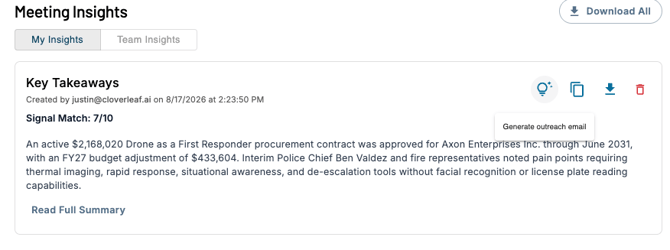
Generating Your Email
Once the modal opens you'll see the content of your insight along with two options before generating:
Add Context (optional)
Use the context box to give Cloverleaf AI additional direction - for example, referencing a specific product capability, a talking point you want included, or something specific about the recipient. The more relevant context you add, the more tailored the email will be.
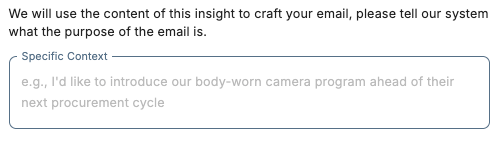
Select a Tone
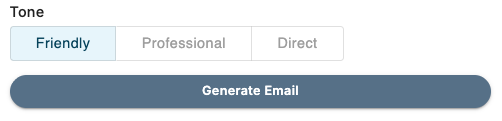
Choose from three tone options:
- Friendly
- Professional
- Direct
Click Generate Email to create your draft. If you change the tone after the email has already been generated, click Generate Email again to apply the new tone.
Working With Your Generated Email
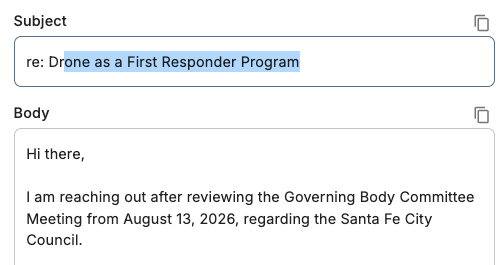
Once your email is generated you can:
- Edit the subject line and body directly in the modal - make any changes before sending
- Copy the subject line or body using the copy buttons to paste into your own email client
- Click Send Email to open the draft in your default email browser with the content pre-loaded
Tip: Use the context box to reference specific details from your user profile - like a product capability or a pain point you solve - to make the email feel less generic and more relevant to the recipient.
Questions? Contact us at support@cloverleaf.ai