
How to Get There
The Signals and Tasks Feeds are located on the Homepage. Click the Home icon in the left navigation menu to get there.
How to Add a Task
There are three ways to add something to your Tasks Feed:
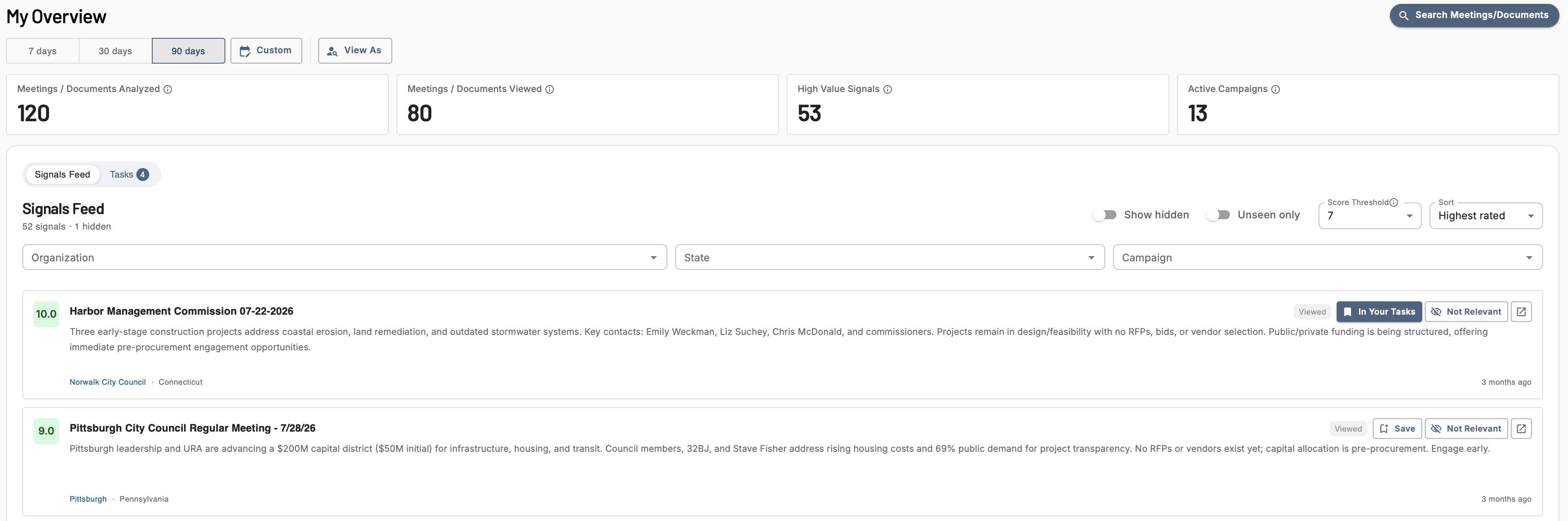
From the Signals Feed
Click Save on any Signal card on the homepage to add it to your Tasks feed.

From a Meeting or Document Detail Page
Click the Save button in the top left corner of any Meeting or Document Detail Page. This saves the meeting or document to your Tasks feed along with any search terms or Campaign terms that were active when you opened it - so when you come back to it, the context is already there.
From the Organization Details Tab
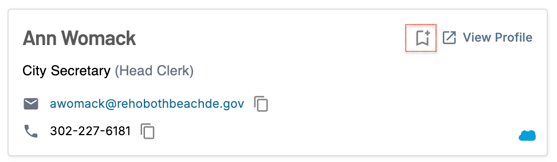
On any Meeting or Document Detail Page, navigate to the Organization Details tab to view contacts associated with that government body. Click Save on any individual contact to add them to your Tasks feed as a People task.
From Meeting or Document Search Results
Click the Save button in the top right corner of any Meeting or Document Detail Page. This saves the meeting or document to your Tasks feed, including any relevant search or campaign information.

From the Person Details Page
Click the Save button in the top right corner of any Meeting or Document Detail Page. This saves the person to your Tasks feed
Note: Purchase data and Legislation are not currently supported in the Tasks Feed.
Signals Feed
The left side of the homepage displays your Signals Feed - a running list of all signals you've received in your daily and weekly Signals emails.
Searching and Sorting
- Use the search bar to find a specific signal by keyword or meeting name
- Sort by Highest-Rated or Newest signal first - defaults to Highest-Rated
Filtering
- Filter by Campaign - Narrow the feed to signals from a specific Campaign
- Filter by Organization - Narrow results to a specific municipality or government entity
- Filter by State - Limit signals to a specific state
- Filter by Score Threshold - Signals scoring at or above this threshold appear in the feed.
- Toggle between Unseen and Seen signals
- Unseen - Signals that were sent to your email but not yet clicked on
- Seen - Signals you've previously opened

Interacting with Signal Cards
Each Signal card has several ways to interact with it:
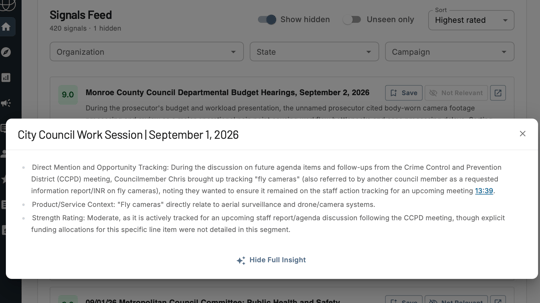
- Click the card - Opens the Signal summary so you can read the full insight without leaving the homepage
- Click the channel name - Opens the Channel Detail Page for that government entity
- Click the view meeting/document button on the far right - Opens the full meeting or document. If the signal came from a Campaign, the Campaign's search terms are carried through so you land on the meeting or document with those keywords already applied
- Click Save - Adds the Signal to your Tasks feed so you can come back to it later
- Click Hide - Removes the Signal from your feed
Mark Signals as Not Relevant
Adding an optional reason why this Signal wasn't valuable will help customize future Insights and Signals 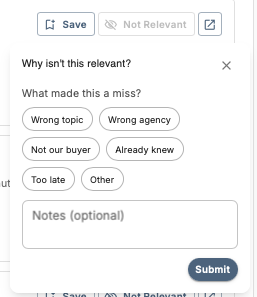
Finding Hidden Signals
If you've hidden a Signal and want to find it again, use the Show Hidden toggle at the top of the Signals Feed to surface any signals you've previously hidden.

Tasks Feed
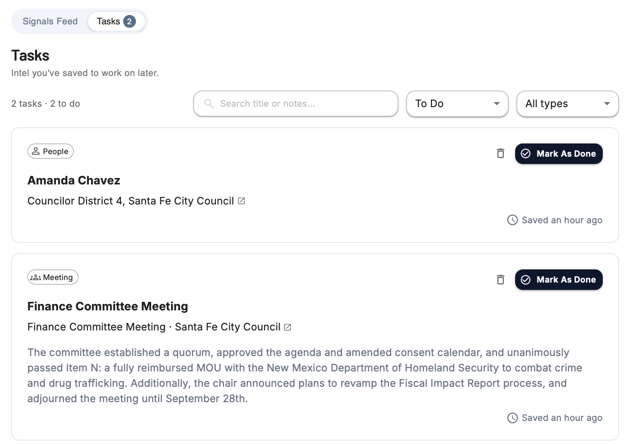
The Tasks Feed lets you save signals you want to come back to and track them like a to-do list. When you click Save on a signal in the Signals Feed, it lands here.
Filtering Your Tasks
- Use the search bar to find a task by keyword
- Filter by Status - All, To Do, or Done
- Filter by Type - All Types, Meetings, Documents, or People
Managing Tasks
Each task supports three actions:
- Mark as Done - Moves the task to the Done list
- Mark as To Do - Moves a completed task back to the To Do list
- Delete - Completely removes the task from your Tasks feed
Questions? Contact us at support@cloverleaf.ai