
Standard Campaign vs. Insight Campaign
When saving a Campaign you'll choose between two types. Understanding the difference helps you decide which is right for each search.
Standard Campaign Monitors your keywords and filters continuously and notifies you when new meetings or documents match your criteria. Your Signals email will show you what was mentioned - and where.
-
Think of it as a saved search - it tells you when something relevant is mentioned.
Insight Campaign (recommended) Everything a Standard Campaign does, plus AI-generated analysis for every matched result. Insight Campaigns automatically generate summaries aligned to your Focus Areas and goals, and deliver them alongside your Signals emails.
-
Think of it as monitoring plus analysis - it doesn't just tell you something happened, it tells you why it matters.
Insight Campaigns consume AI Credits each time an insight is generated and delivered.
Creating a Campaign
Campaigns are created from the Search page. Once you've built a search worth monitoring:
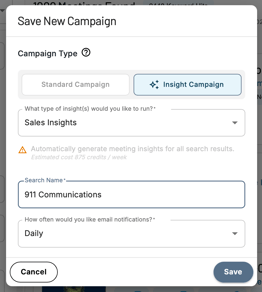
- Click Save Search at the bottom of the search page
- Enter a Campaign name
- Choose Insight Campaign or Standard Campaign
- If saving as an Insight Campaign, use the Insight dropdown to select which type of AI analysis you want included in your alerts - Key Takeaways and Sales Insights are the most popular
- Choose your alert frequency - Daily (7am ET, previous 24 hours) or Weekly (Mondays at 7am ET, previous week)
- Click Submit
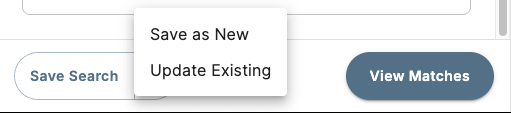
If you're updating a search that's already saved as a Campaign, you'll have the option to overwrite the existing Campaign or save it as a new one.
Note: Cloverleaf AI sends a maximum of one Signals email per day across all of your subscribed Campaigns, regardless of how many you have active.
What's in a Signals Email?
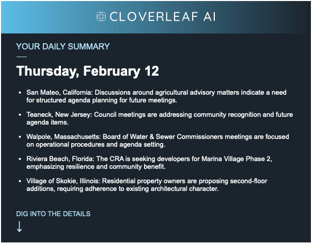
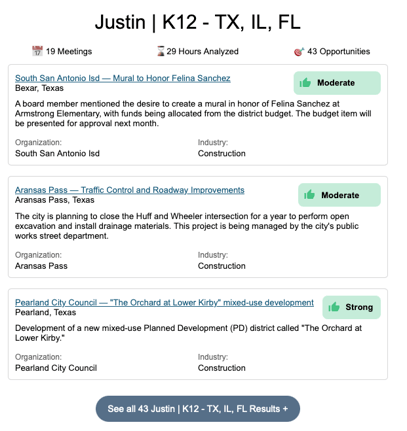
Your Signals email is your daily (or weekly) briefing of everything that matched your Campaigns since your last alert.
- AI-generated summaries appear at the top of Insight Campaign emails - quick recaps of the most relevant findings across your Campaigns, designed to surface what needs your attention first
- Meeting and document results are listed below - click any title to open the full transcript in Cloverleaf AI
- Transcript snippets are timestamped - click any timestamp to jump directly to that moment in the meeting video
Finding Your Saved Campaigns
Once you've created Campaigns, you can access them in two places:
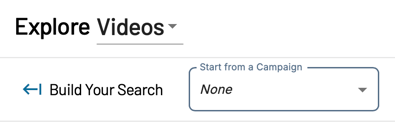
From the Search page Use the Campaign dropdown at the top of the search page to load any Campaign you're subscribed to or any Campaign created by your team. Selecting a Campaign instantly loads its keywords, filters, and location settings so you can jump straight into your results.
From the Campaigns page Click Campaigns in the left navigation menu to open the full Campaigns page. Here you'll find every Campaign you're subscribed to under the All Campaigns tab - including ones you created and any assigned to you by your organization's admins. Click on any Campaign to open its search results directly.

Managing a Single Campaign
Once a Campaign is created, you can update it in two places:
From the Search page Load any Campaign using the Campaign dropdown at the top of the search page. Make changes to keywords or filters directly in the search builder, then click Save Search to update the existing Campaign or save it as a new one.
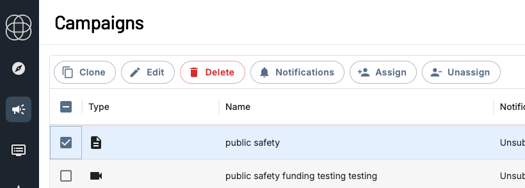
From the Campaigns page Each Campaign on the Campaigns page has four actions:
- View - Opens the search results page showing keyword hits from the last 7 days
- Edit - Opens the Campaign editor to update keywords, filters, location, Insight type, or alert frequency. Click Save when finished.
- Assign / Unassign - Changes who sees this campaign in their list and receives Signals emails from it.
- Change Ownership - Allow Admins to reassign ownership of any Campaign to another user in the organization - keeping Campaigns properly attributed and easy to manage as teams change.
- Clone - See the Cloning a Campaign section below
- Delete - Removes the Campaign from your account. You'll be prompted to confirm before it's deleted.
Transfer Ownership
- From the Campaigns page, find the Campaign you want to reassign
- Click Assign to open the assignment dropdown
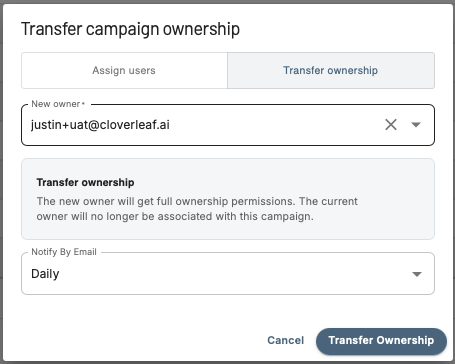
- Select the user you want to transfer ownership to
- Check the box for Transfer ownership to this user
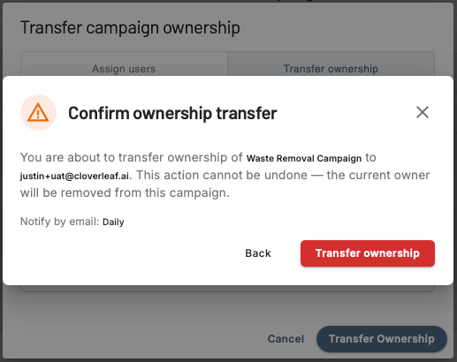
- A confirmation prompt will appear - review the details and click Confirm to complete the transfer
What Happens After the Transfer
- The selected user becomes the new owner of the Campaign regardless of their role - Basic users can own and edit a Campaign once ownership is transferred to them
- The original owner is no longer associated with the Campaign
- The Owner column on the Campaigns page will update to reflect the new owner's email address
Things to Know
- Assigning a Campaign to a user and transferring ownership are two separate actions - assigning alone does not change ownership
- A Campaign can only have one owner at a time
- Only Admins can transfer ownership - the option is not visible to Basic users
- The transfer requires confirmation before it takes effect and cannot be completed without it
Cloning a Campaign
Creating similar Campaigns from scratch is time-consuming when you want to reuse the same keywords and filters. The Clone feature duplicates an existing Campaign and lets you choose whether the new version searches Videos or Documents - so you can quickly build variations without rebuilding from the ground up.
To clone a Campaign:
- From the Campaigns page, find the Campaign you want to duplicate
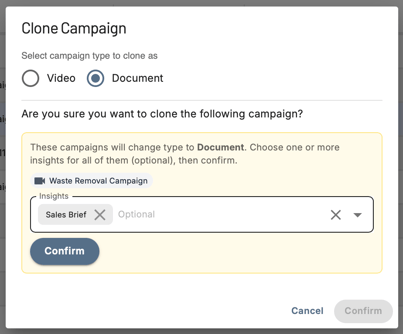
- Click Clone
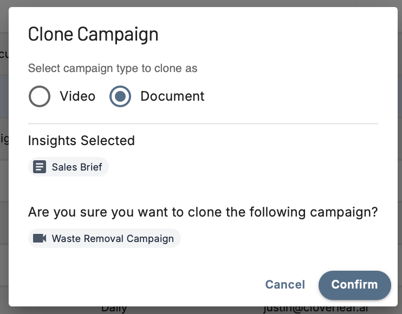
- Choose whether the new Campaign should search Videos or Documents
- If you're changing the Campaign type to Video or Document, you'll be prompted to select which Insight to receive in your Signals. Press Confirm once you've selected the insight.
The cloned Campaign will carry over:
- All keywords and proximity search settings
- Geographic and location filters
- All other search filters
The following must be configured again on the new Campaign:
- Subscriptions and alert frequency
Pro Tip: Use Clone to quickly build paired Video and Document Campaigns from the same search - one monitoring meeting recordings, the other scanning agendas, minutes, and notices for the same keywords.
Managing Multiple Campaigns at Once
If you need to update several Campaigns simultaneously - such as adding a new keyword, changing alert frequency, or expanding to a new location - use the bulk edit feature on the Campaigns page.
- From the Campaigns page, use the checkboxes to select two or more Campaigns
- Click Edit Many - this button activates once two or more Campaigns are selected
- Choose a template Campaign to pre-populate the editing form
- Update the fields you want to change - each section has its own Save button so you can apply changes independently
- Confirm the changes in the modal that appears - updates will apply to all selected Campaigns
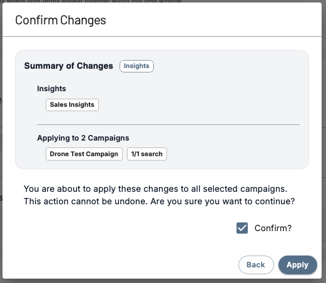
Bulk editing supports updates to:
- Keywords
- Alert frequency
- Insight settings
- Location filters
- Demographic filters
- Speaker filters
Note: Campaign names cannot be edited in bulk. Bulk edits cannot be undone - review your changes carefully before confirming.
Viewing Your Organization's Campaigns
Click All Campaigns at the top of the Campaigns page to see every Campaign created by members of your organization - not just your own. Use this to subscribe to a teammate's Campaign or build on searches that are already working.
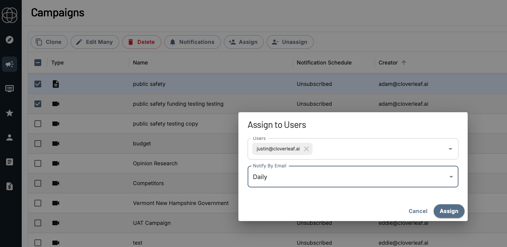
To subscribe to another user's Campaign:
- Find the Campaign under All Campaigns
- Select the checkbox next to it
- Click Assign in the toolbar near the top of the page
- Choose your preferred alert frequency
- Click Confirm to save
Pro Tip: Use Edit Many when expanding to a new territory or rolling out a new product - apply updates across all relevant Campaigns at once instead of editing them one by one.
Questions? Contact us at support@cloverleaf.ai