
How to Get There
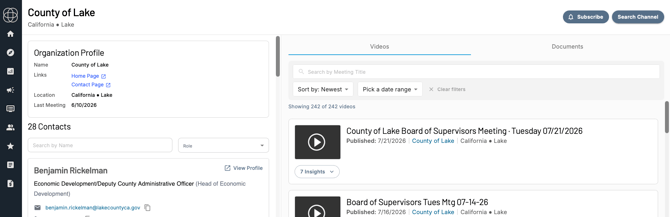
Navigate to the Channel Detail Page for the government body you want to follow. Click the Channels icon in the left navigation menu, search for the channel, and click its name to open the page.
How to Subscribe
- Click the Subscribe button in the top right corner of the Channel Detail Page
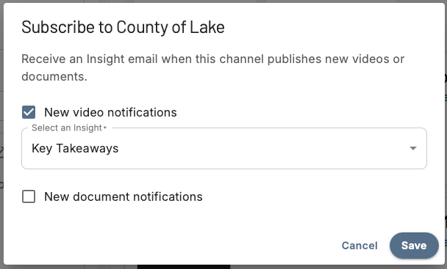
- A modal will open - choose whether you want to receive notifications for Videos, Documents, or both
- Select which Insight you want to receive with each notification - this is the AI-generated analysis that will be delivered alongside the new content so you understand what was discussed
- Click Confirm to save your subscription
What Happens After You Subscribe
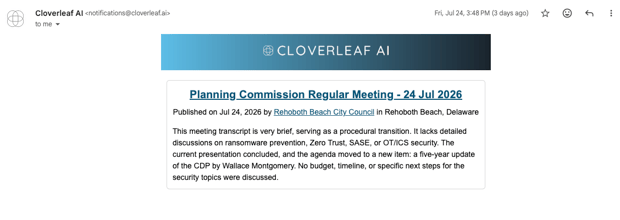
Every time that Channel posts a new video or document, Cloverleaf AI will send you a notification email containing:
- A link to the new meeting or document
- The AI-generated Insight you selected - so you can quickly understand what was covered without having to open the meeting first
Things to Know
- You can subscribe to Videos, Documents, or both - subscriptions for each content type are managed independently
- Selecting an Insight is required - every subscription must have an Insight type associated with it
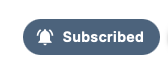
- You can manage or cancel your Channel subscriptions at any time from the Channel Detail Page by clicking the "Subscribed" button
Questions? Contact us at support@cloverleaf.ai