
How to Get There
Click Campaigns in the left navigation menu to open the Campaigns page. On the Campaigns page, the Owner column displays the email address of each Campaign's current owner.
Transfer Campaign Ownership
- From the Campaigns page, find the Campaign you want to reassign
- Click Assign to open the assignment dropdown
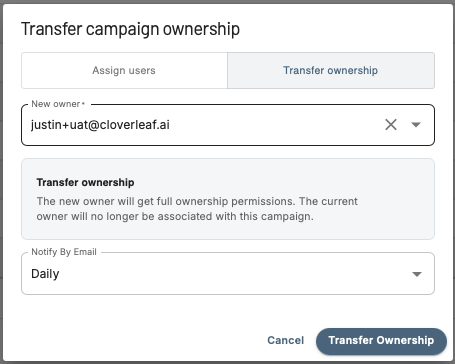
- Select the user you want to transfer ownership to
- Check the box for Transfer ownership to this user
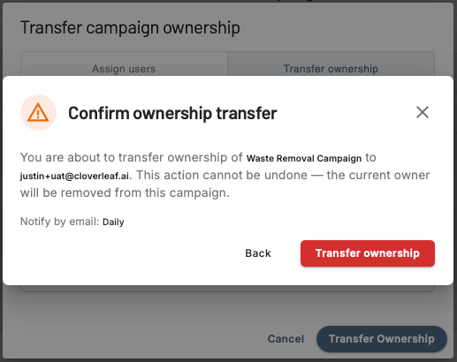
- A confirmation prompt will appear - review the details and click Confirm to complete the transfer
What Happens After the Transfer
- The selected user becomes the new owner of the Campaign regardless of their role - Basic users can own and edit a Campaign once ownership is transferred to them
- The original owner is no longer associated with the Campaign
- The Owner column on the Campaigns page will update to reflect the new owner's email address
Things to Know
- Assigning a Campaign to a user and transferring ownership are two separate actions - assigning alone does not change ownership
- A Campaign can only have one owner at a time
- Only Admins can transfer ownership - the option is not visible to Basic users
- The transfer requires confirmation before it takes effect and cannot be completed without it