
How to Get There
Click the Settings icon in the lower left corner of the screen, then click Territory.
Your Territory Overview
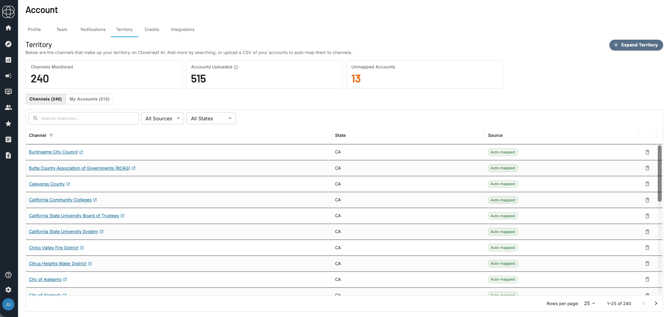
At the top of the Territory page you'll see a summary of your current setup:
- Channels Monitored - The number of Cloverleaf AI channels currently in your Territory
- Accounts Uploaded - The total number of accounts you've imported
- Unmapped Accounts - Accounts that don't have a corresponding channel in Cloverleaf AI yet
Building Your Territory
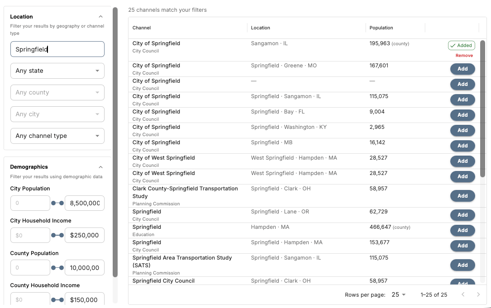
Click Expand Territory to add channels to your Territory. You have two options:
Add Channels Manually
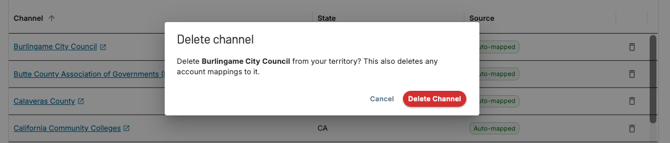
Use the search bar and filters on the left side to find specific government bodies. When you find a channel you want to include, click Add. To remove a channel from your Territory, click Remove.
Import via CSV
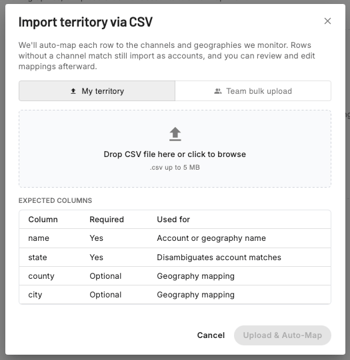
If you have an existing account list, click Import via CSV and follow the instructions in the window to upload your accounts and automatically map them to their corresponding Cloverleaf AI channels. This is the fastest way to get your Territory set up if you're working from a CRM export or existing territory list.
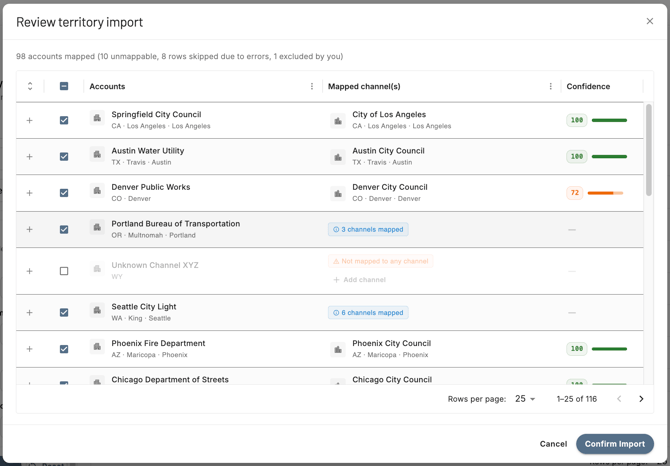
Tip: After importing, check your Unmapped Accounts count on the Territory overview. Unmapped accounts don't have a matching Cloverleaf AI channel yet - you can manually search for and add those channels if they exist under a different name.
Managing Your Territory
Once your Territory is set up, visit the Territory page at any time to review, add, or remove channels. Your Territory applies across Cloverleaf AI - searches, Campaigns, and signals will all filter to the channels in your Territory automatically.
Things to Know
- Unmapped accounts don't have a corresponding channel in Cloverleaf AI - this may mean the government body isn't currently covered, or that it's listed under a slightly different name
- You can add and remove channels from your Territory at any time without affecting your existing Campaigns or subscriptions
- Territory applies platform-wide - once set, it scopes your entire Cloverleaf AI experience to your selected channels
Questions? Contact us at support@cloverleaf.ai