
How to Get There
Verified speakers appear on the Channel Detail Page of any government body they're associated with. Click View Profile next to any verified speaker to open their Person Detail Page.
From the homepage of Cloverleaf AI:
- Click the Channels button on the left navigation bar
- Search for your channel
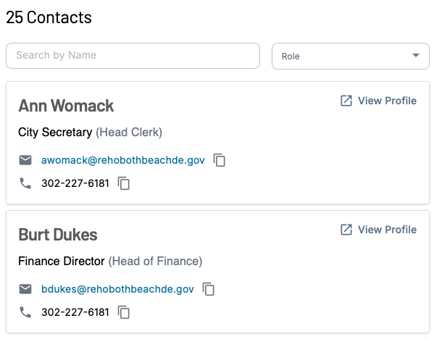
Search and Insights
At the top right of the Person Detail Page, toggle between two views:
- Search - Search and browse everything this person has said across all of their recorded meetings
- Insights - Generate and view AI-generated Speaker Insights for this person

Search Tab
Meeting History - Every meeting that person has been identified in is listed on their profile. Use this to understand how active they are, how long they've been involved with a particular body, and whether their participation has increased or decreased over time.
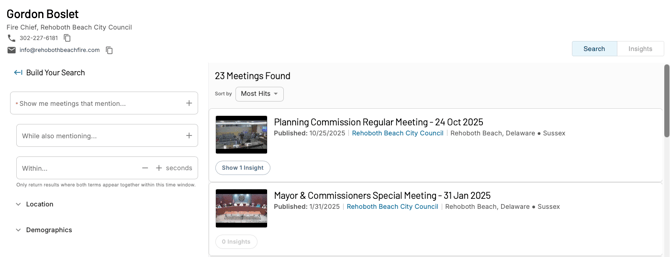
Keyword Search - Search everything that person has ever said across all of their recorded meetings. This is one of the most powerful ways to prepare for a conversation with a government official.
To search their speaking history:
- Use the search bar on their Person Detail Page
- Enter a keyword or phrase and results will surface every instance they've spoken about that topic
Key search terms to try:
- Your company name or product category
- Budget, funding, or procurement
- Specific programs, initiatives, or technology areas relevant to your work
- Competitor names
- Terms like "contract," "vendor," or "RFP"
Insights Tab
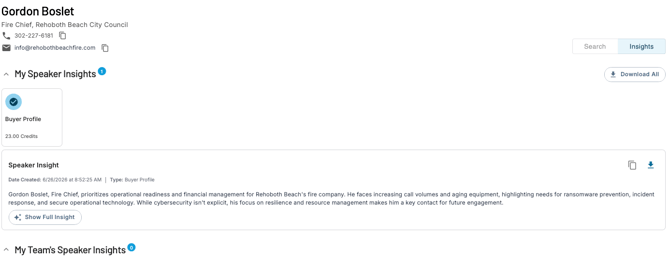
Speaker Insights - Click the Insights toggle to generate or view AI-generated Speaker Insights for this person. A Speaker Insight analyzes this official's participation across their most recent 25 meetings to surface patterns in their priorities, positions, and areas of focus.
This is especially useful before a high-stakes meeting or outreach - giving you a structured analysis of who this person is and what they care about, without having to manually review dozens of transcripts.
How to Generate a Speaker Insight
- Click the Insights toggle in the top right of the Person Detail Page
- Click Buyer Profile
- Review the credit cost - Speaker Insights cost 1 AI Credit per meeting analyzed, up to 25 credits total
- Click Confirm to generate
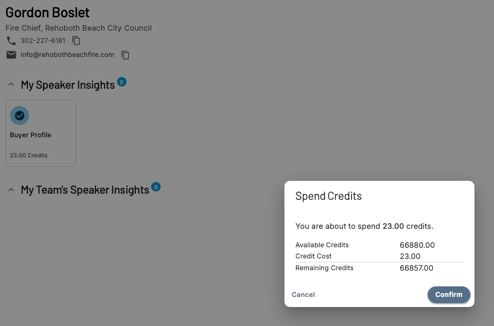
Your Speaker Insight will appear on the page once generated. You can also find it on the Insights page alongside your other AI-generated insights.
Viewing Your Team's Speaker Insights
The Insights tab shows both your own Speaker Insights for this person and any Speaker Insights generated by your teammates for the same official - so your organization isn't duplicating work or missing context that already exists.
What to Do With What You Find
Reviewing a person's profile before a meeting helps you:
- Understand their history and familiarity with topics you plan to discuss
- Identify whether they've spoken favorably or critically about relevant issues
- Find talking points or shared ground based on their public record
- Avoid being caught off guard by positions they've already taken
Questions? Contact us at support@cloverleaf.ai