
Getting Started: Find the Channel
In Cloverleaf AI, every government body you can monitor is called a Channel. A Channel might be a city council, a county commission, a state agency, or a transportation authority. Each one has its own page with meeting history, contact information, and speaker profiles.
To find the Channel you're meeting with, click the Channels icon in the left navigation menu to open the Channel Directory.
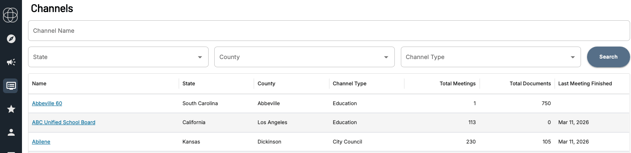
From the Channel Directory you can:
- Search by name - type in the city, county, or agency you're looking for
- Filter by State, County, or Channel Type to browse if you're not sure of the exact name
Click the Channel's name to open its page.
What You'll Find on a Channel Page
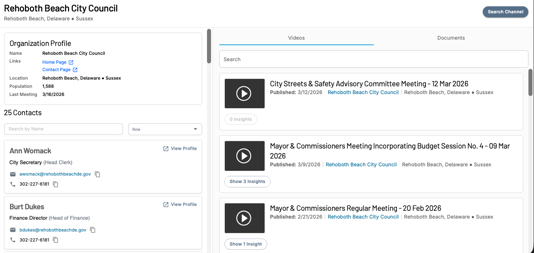
The Channel page is your home base for researching a government body. Here's what to look for before your meeting:
Contact Information - The Channel page includes links to the agency's Home Page and Contact Page - useful for finding staff directories, leadership contacts, and background on the organization before you arrive.
Verified Speakers Cloverleaf AI identifies and verifies speakers who appear regularly in that Channel's meetings. Reviewing speaker profiles gives you a sense of who the active voices are, what topics they tend to engage on, and whether any of them are likely to be in your meeting.
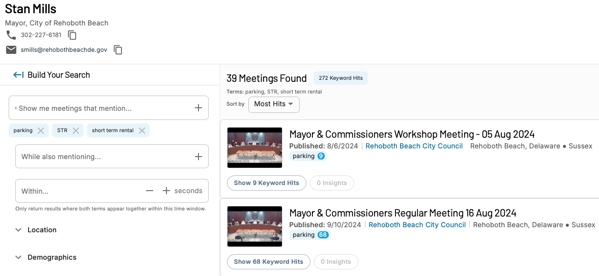
Click View Profile on any verified speaker to open their Person Detail Page. From there you can:
- See every meeting that person has been identified in
- Search their speaking history by keyword to find what they've said about specific topics
- Use key search terms like your product category, budget, procurement, funding, or your company name to quickly surface relevant moments
- Get a sense of their position and sentiment on issues before you walk in the door
Video Archive - The video archive shows every transcribed meeting Cloverleaf AI has on record for that Channel. Browsing recent meetings gives you a quick read on what the body has been focused on lately.
Document Archive - The document archive surfaces official government documents associated with that Channel - including meeting agendas, minutes, packets, and public notices when available. Reviewing these before your meeting gives you a clearer picture of what's been formally proposed, approved, or put on record, which can be just as valuable as the meeting transcripts themselves.
Search the Channel's History
To go deeper, click Search This Channel in the top right corner of the Channel page. This takes you to the search page with that Channel already filtered - so every search you run is scoped to just that government body.

Use this to:
- Search for your company name or product category to see if you've come up in their meetings
- Search for topics you plan to discuss to understand their existing position
- Search for budget, funding, or procurement terms to gauge urgency
Pro Tip: If you find relevant results, save the search as a Campaign so you continue getting alerts from this Channel after the meeting.
Run a Bulk Analysis
If you want a more comprehensive picture before a high-stakes meeting, run a Bulk Analysis. This uses Cloverleaf AI to review multiple meetings from that Channel and generate a tailored report on what matters most to you.
How to Run One
- From your search results for that Channel, adjust the dates to go back into the channel's video history (i.e. 90 - 180 days)
- Click Run Bulk Analysis in the top right corner
- Choose the type of analysis you want:
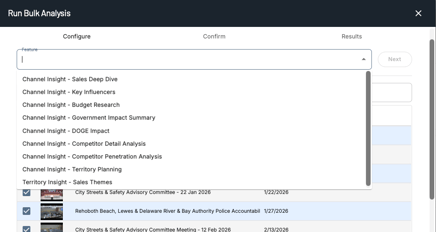
- Select up to 100 meetings to include - for best results, use meetings from the same geography
- Click Next and review your selections on the confirmation page
- Click Generate Report
Your Meta Analysis will be delivered to your inbox and saved to the Insights tab in Cloverleaf AI.
Note: Processing time depends on the length of the meetings included. Longer meetings will take more time to analyze.
A Quick Pre-Meeting Checklist
Before your meeting, use Cloverleaf AI to:
- Find the Channel in the directory and review the contact page
- Check verified speaker profiles for the people you'll be meeting with
- Search their speaking history for your key topics on the Person Detail Page
- Review the document archive for recent agendas, minutes, and notices
- Search the Channel's history for your key topics
- Run a Meta Analysis if you want a full strategic brief
Questions? Contact us at support@cloverleaf.ai