
Getting to Purchase Search
From the home page, click the search button and use the dropdown to select Purchases. This opens the Explore Purchases page.
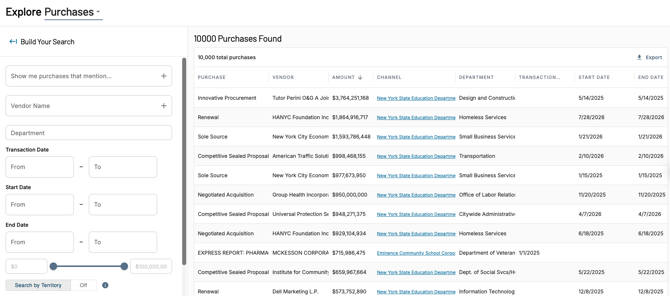
Search modes
- Keyword Search — best when you have specific terms in mind
- Vendor Search — specific vendors
- Department — filter to a specific department (e.g., Fire Department)
Filters
Refine your results with:
- Date range — required Start Date and End Date
- Amount range — set a minimum and maximum purchase amount using the slider or input fields
- Search My Territory — restrict results to channels in your territory
- Locations — filter by geography (country, state, etc.) or channel type
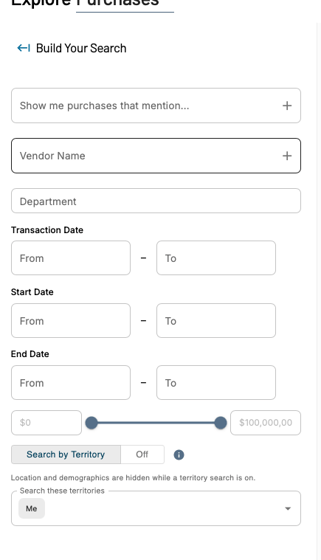
Once your filters are set, click View Matches to see results. Click Reset at any time to clear filters and start fresh.
Viewing results
Matching purchases display in a table with these columns:
- Purchase — the transaction type or description
- Vendor — who was paid
- Amount — the dollar value
- Channel — the government entity (clickable — opens the Channel Detail Page)
- Department — the department associated with the purchase
- Transaction Date — when the purchase occurred
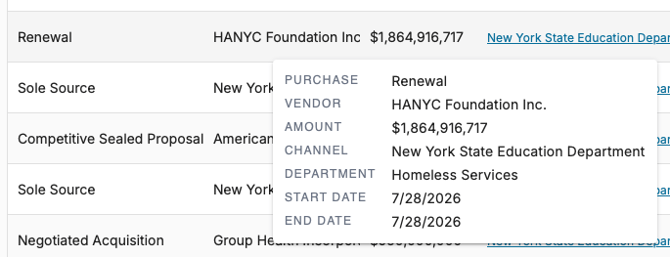
Use the pagination controls at the bottom of the table to page through results, or adjust the rows-per-page selector.
Exporting to CSV
Click the Export button in the top right of the results table to download the current result set as a CSV. The export reflects your active filters, so refine before exporting to keep the file focused.
Tips
- Adjust the amount slider carefully — a wide range can pull in noise you don't want
- Use Search My Territory to focus quickly on channels you already own
- Clicking a Channel name in the results is the fastest way to dig deeper into a specific entity's activity