
How Speaker ID Works
Speaker ID does two things together. It labels who is talking in each transcript, and it matches voices to real people. This happens automatically, in four steps:
- Cloverleaf AI collects contact information. It scans the directory pages on government websites and also pulls from trusted third-party partners. These contact sources are updated daily, so new speakers are picked up as personnel changes are posted on the entity's website.
- Cloverleaf AI matches voices to people. It uses vocal fingerprinting to match what it hears in a meeting video to a name and role.
- Speakers are labeled in the transcript. When someone introduces themselves, Speaker ID will notice that and add it to the transcript so you can see who is speaking as you read.
- Each repeat speaker gets a profile. Cloverleaf AI creates a Person Detail Page for them, where you can search what they’ve said and run Insights once they've spoken in multiple meetings. This will not be available for all speakers.
Note: Speaker ID works on video meetings only. Documents don’t have speakers, so there is nothing to identify.
Verified Speakers and Contacts
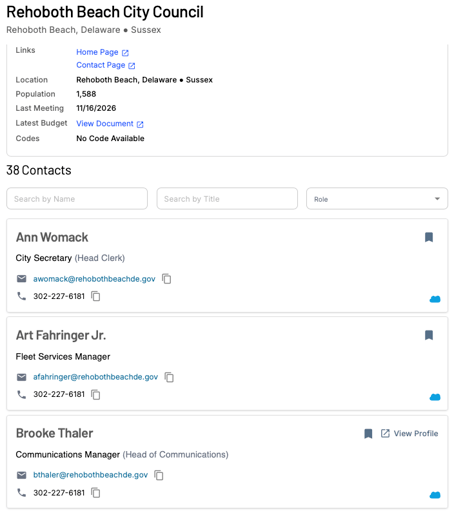
On a Channel Detail Page, the People section holds two groups:
- Verified Speakers - People Speaker ID has identified as someone who actually spoke in a meeting
- Contacts - Employees of the government body, identified through any source, whether or not they have spoken in a meeting
Where to Find Identified Speakers
In meeting transcripts
Open any meeting from search results, your Signals emails, or the Channel Detail Page. On the Meeting Detail Page, the transcript shows each speaker’s name next to what they said. Click a name to see what Cloverleaf AI knows about that person.
Some speakers will have limited or no information. For example, a resident making a public comment usually has no role or title with the organization.

On the Channel Detail Page
Open a Channel from the Channels icon in the left navigation menu. The People section lists its Verified Speakers and Contacts. Click View Profile on a person to open their Person Detail Page.
What You Can Do With a Speaker Profile
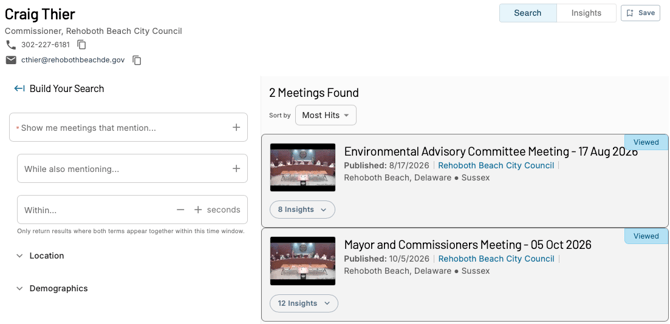
Each profile on the Person Detail Page lets you:
- See every meeting the person has been identified in
- Search everything they’ve said by keyword, such as a topic, program, or budget term
- Run a Speaker Insight with the Buyer Profile button. This analyzes their most recent 25 meetings and builds a profile based on your needs. It costs 1 AI Credit per meeting analyzed, up to 25 credits.
See the Person Detail Page article for step-by-step instructions.
Things to Know
- Speaker ID is automatic. You can view identified speakers, but you can’t edit or assign them
- Speaker ID applies to video only, not documents
- Contact sources are checked daily for new speakers
- Speaker ID is available to every user on every plan
- Occasionally a speaker can’t be identified, such as when they don’t introduce themselves or the audio quality is poor
Tips
Follow a person across meetings. Use a speaker’s profile to search a topic across everything they’ve said, instead of reading full transcripts one by one.
Get a profile built for you. Run a Speaker Insight to see how a person’s statements relate to your goals, without reading every transcript yourself.
Questions? Contact us at support@cloverleaf.ai