
How to Get There
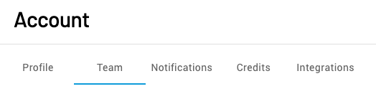
Click Account on the bottom left of the homepage. 
Managing Existing Users
Use the checkboxes next to each user's name to select one or more users. Once selected, you can take the following actions:
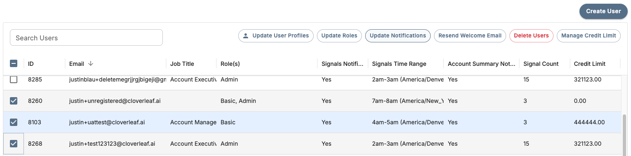
Update Roles - Choose between two role types:
- Admin - Can manage teams, invite users, and access organization-level settings
- Basic - Can access core platform features but cannot modify other users, team, or org-level settings
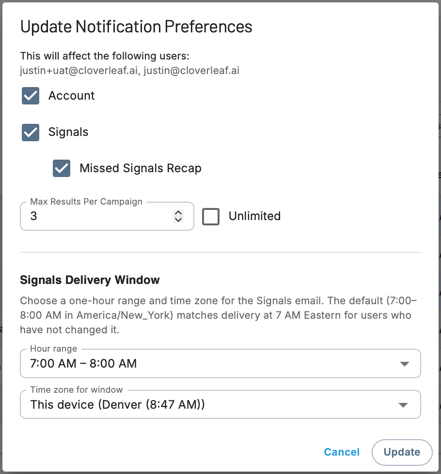
Update Notifications and Signals Delivery Window
-
Enable or disable email alerts for selected users, including Signals emails and account updates.
- Select the maximum number of results per campaign you want to receive in your Signals emails. The minimum is 3 and the maximum is unlimited, meaning you'll see every single hit from that campaign daily.
- Missed Signals Recap - This triggers the Weekly Recap email which surfaces up to 5 high-value sales insights from meetings you didn't open in their Daily Signals emails the prior week. It sends Mondays at 11am ET (currently not adjustable), and if you don't miss any high-value sales insights, you won't receive it.
- The Signals Delivery Window allows you to choose when you receive your daily and/or weekly Signals emails
Update User Profile - Update the User Profile for one or multiple users at once. This is useful for ensuring your team's profiles are complete and consistent - which directly impacts the quality of their AI-generated insights.
- Basic Users - can update their own profile
- Admin Users - can select one or multiple users, click Update User Profile, choose a profile to use as a template, make changes, and click Update to apply across all selected users
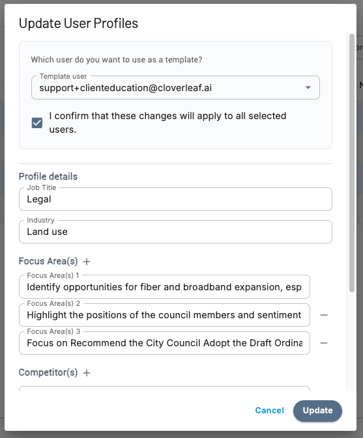
Tip: Use Update User Profile to quickly onboard new team members by applying a well-configured profile as a template - so their insights are relevant from day one.
Resend Welcome Email - If a user missed or lost their original invite, resend it here.
Manage Credit Limits - Adjust how many AI credits a user can spend on generating insights.
Delete User - Remove a user's access from your organization entirely.
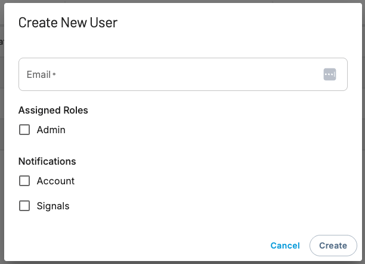
Adding a New User
- Click Create User
- Enter the new user's email address
- Select their role - Admin or Basic
- Choose which email notifications they should receive
The new user will receive a welcome email with a link to create their account and log in.
Questions? Contact us at support@cloverleaf.ai