
How to Get There
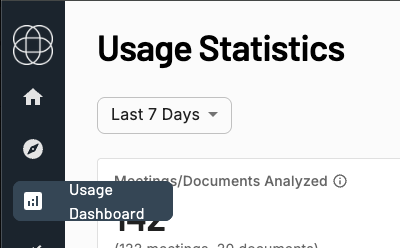
Click the Usage Dashboard icon in the left navigation menu. This page is only accessible to Admin users.
Team Metrics
At the top of the page, four tiles summarize your organization's overall Cloverleaf AI usage for the selected date range:
Meetings / Documents Analyzed
Total distinct meetings and documents where AI insights were generated across your team.
Users With Active Signals Rate
The percentage of users who received at least one Signals email. A high rate means your Campaigns are finding relevant content and your users are properly configured to receive alerts.
Open Rate
The percentage of users who opened at least one Signals email. Reflects how compelling and relevant your alert content feels to recipients.
Click Rate
The percentage of users who clicked through at least one Signal to the underlying meeting or document. Your strongest measure of actionable engagement - users who click are getting real value from what's being surfaced.

Individual User Table
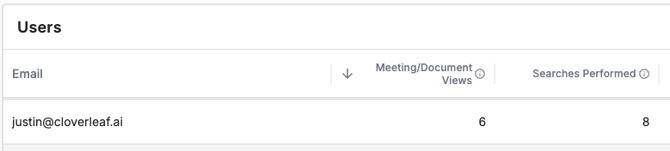
Below the team metrics, a table breaks down activity for every member of your organization. Use this to identify your most active users, spot teammates who may need help getting set up, and understand where engagement is strong or falling short.
Meeting / Document Views
The number of times a user opened a meeting or document surfaced by Cloverleaf AI. High views indicate active consumption of intelligence.
Searches Performed
The number of searches a user ran within the platform. Reflects proactive usage beyond what gets delivered via Campaigns and Signals emails.
Signals Delivered
The total number of Signals emails sent to a user. This is a function of how many active Campaigns they're subscribed to and how frequently those Campaigns run.
Signals Open Rate
The percentage of Signals delivered to a user that they opened. Useful for identifying which users are regularly engaging with their alerts - and which ones might not be seeing them at all.
Signals Click Rate
The percentage of Signals delivered to a user that resulted in a click-through to a meeting or document. Users with high click rates are getting strong, actionable value from the intelligence being surfaced to them.
Campaign Subscriptions
The number of active Campaigns a user is currently subscribed to. Users with zero subscriptions will not receive any Signals emails until they are added to a Campaign.
Tips for Admins
Start with Campaign Subscriptions.
Any user showing zero Campaign subscriptions is invisible to Cloverleaf AI's alerting system - they won't receive any Signals emails until they're added to a Campaign. Make this your first check when onboarding new users or diagnosing low engagement.
Use Signals Delivered as a baseline.
Before drawing conclusions about open or click rates, check how many Signals a user is actually receiving. A user with low engagement and low Signals Delivered likely just needs more Campaigns.
Low open rates could point to a setup issue.
If a user has Campaigns active but isn't opening their Signals emails, check that their notification settings are correct and that their emails aren't going to spam. Use the Teams page to resend their welcome email or update their notification preferences.
High Signals Delivered but low click rates suggest a relevance problem.
If a user is getting lots of alerts but rarely clicking through, their Campaign keywords or location filters may be too broad - surfacing meetings that feel irrelevant. Work with them to tighten their keyword list and narrow their territory.
Track Open Rate and Click Rate together.
A high open rate with a low click rate means users are curious but not finding the content actionable enough to dig into. Consider reviewing their Campaign Insight type - switching to a more relevant Insight may make the content feel worth clicking through.
Use the date filter to spot trends over time.
Don't just review a snapshot - compare usage across different time periods to see whether engagement is growing, declining, or staying flat after a product update, training session, or new Campaign rollout.
Review the dashboard after onboarding new users.
Run a check 2-3 weeks after adding new team members to confirm they have active Campaign subscriptions, are receiving Signals, and have started engaging with the platform. Early intervention is much easier than re-engaging a user who has already disengaged.
Questions? Contact us at support@cloverleaf.ai